Zuper + EagleView
Order an EagleView report, sync the data, and start estimating. All from the same screen where you manage the job.
One workflow, from aerial report to estimate

The Zuper + EagleView integration connects your aerial measurement data directly to the job where your team actually works. EagleView captures the roof from overhead. Zuper pulls the numbers in. Your estimator builds the proposal without ever switching platforms or re-entering a single dimension.
No re-keying measurements
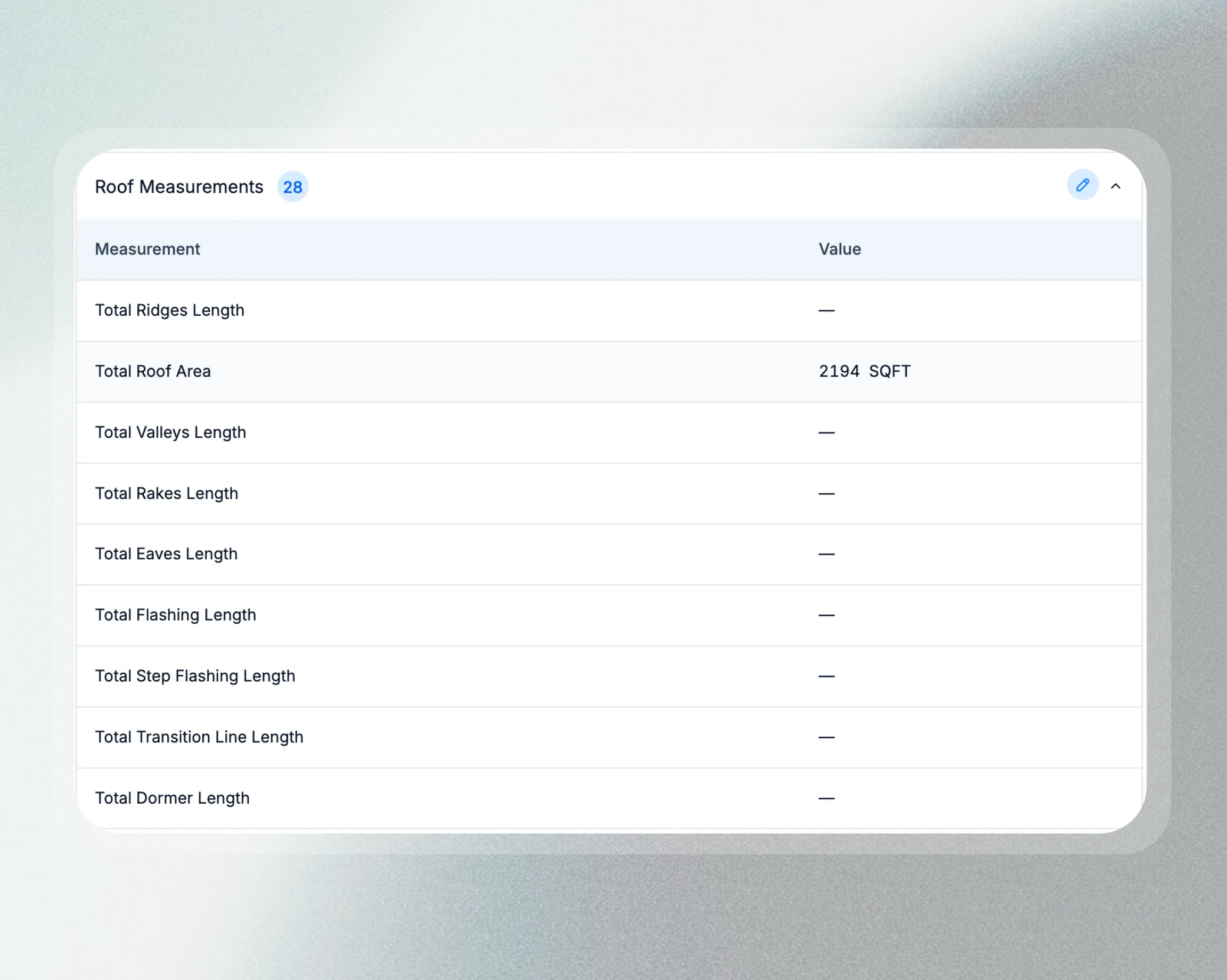
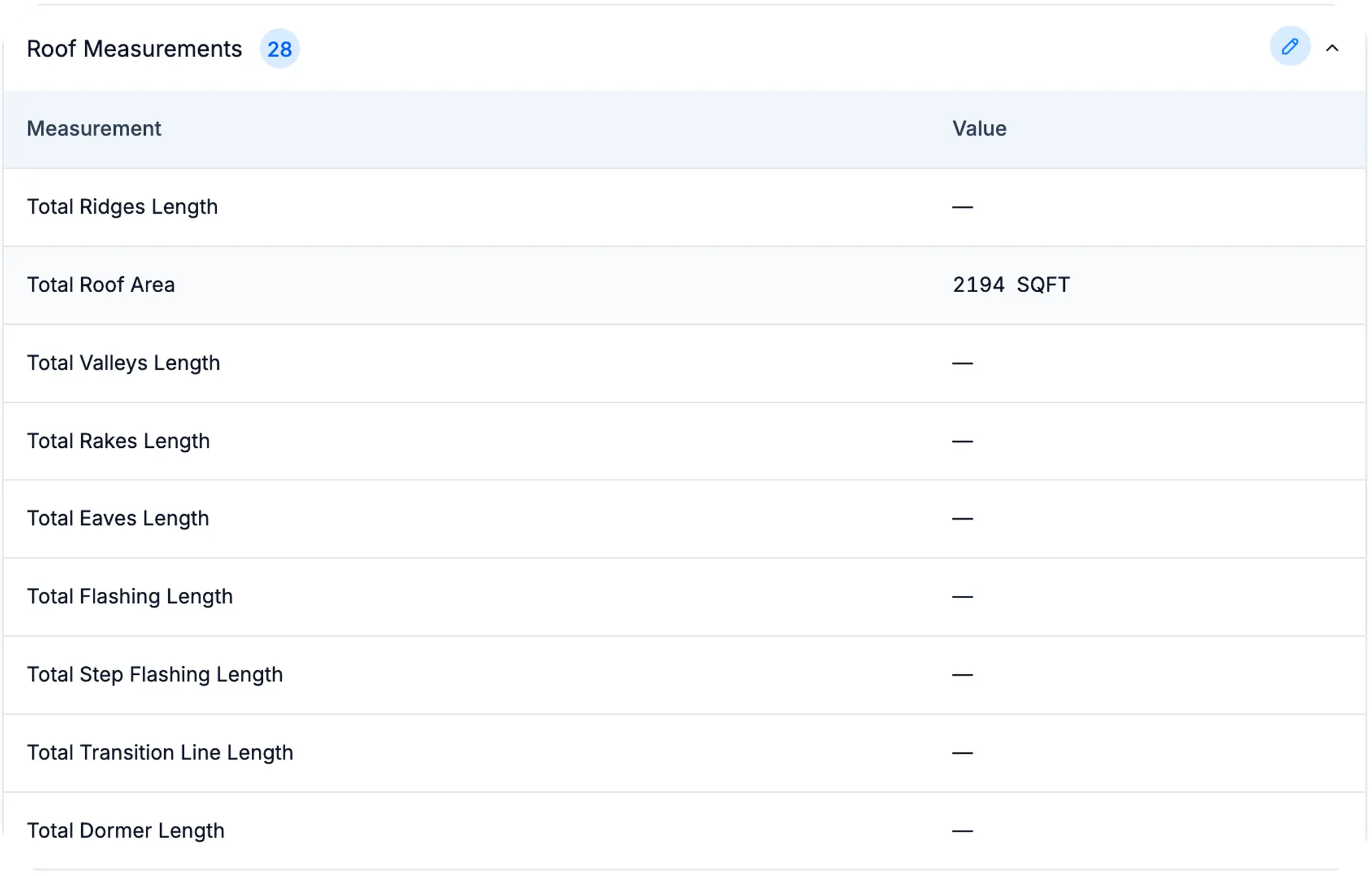
EagleView's roof area, ridge lengths, valleys, pitch, and slopes sync straight into Zuper's measurement tokens. The numbers land exactly where your estimate templates need them.
No hunting for reports
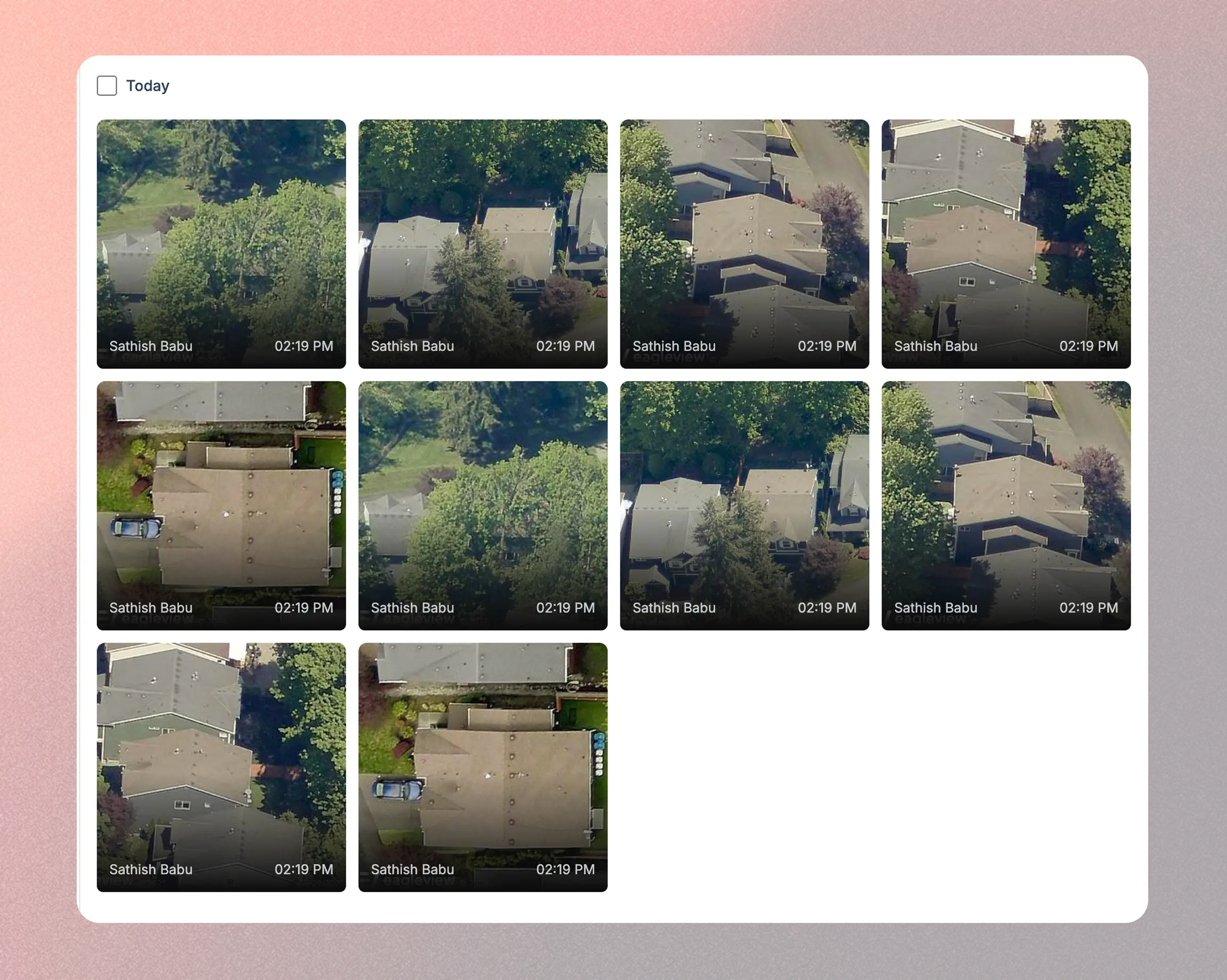
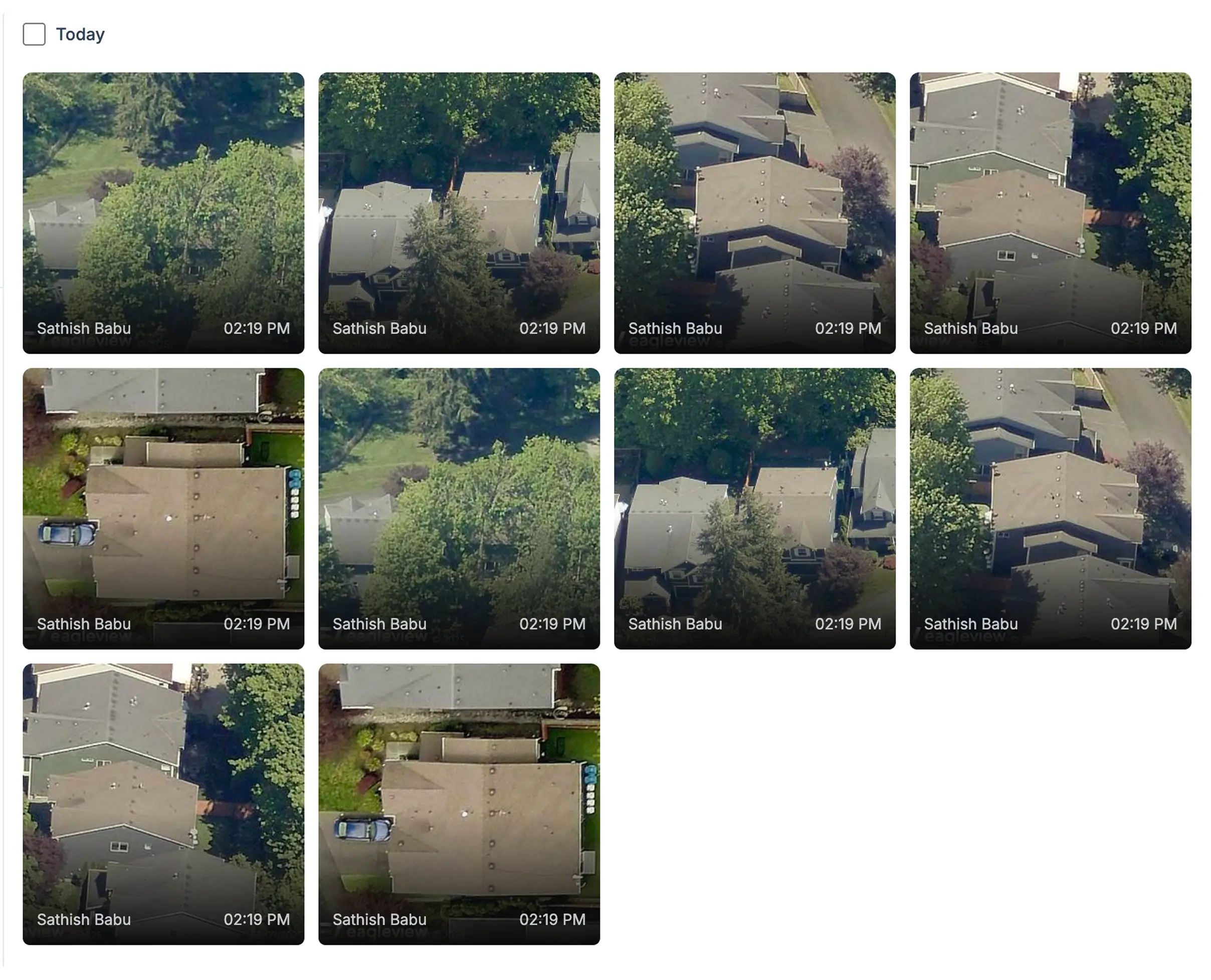
View measurement images in Zuper's Gallery tab and review synced data on the Measurement card. Everything stays attached to the job, not buried in a separate portal.
No broken handoffs
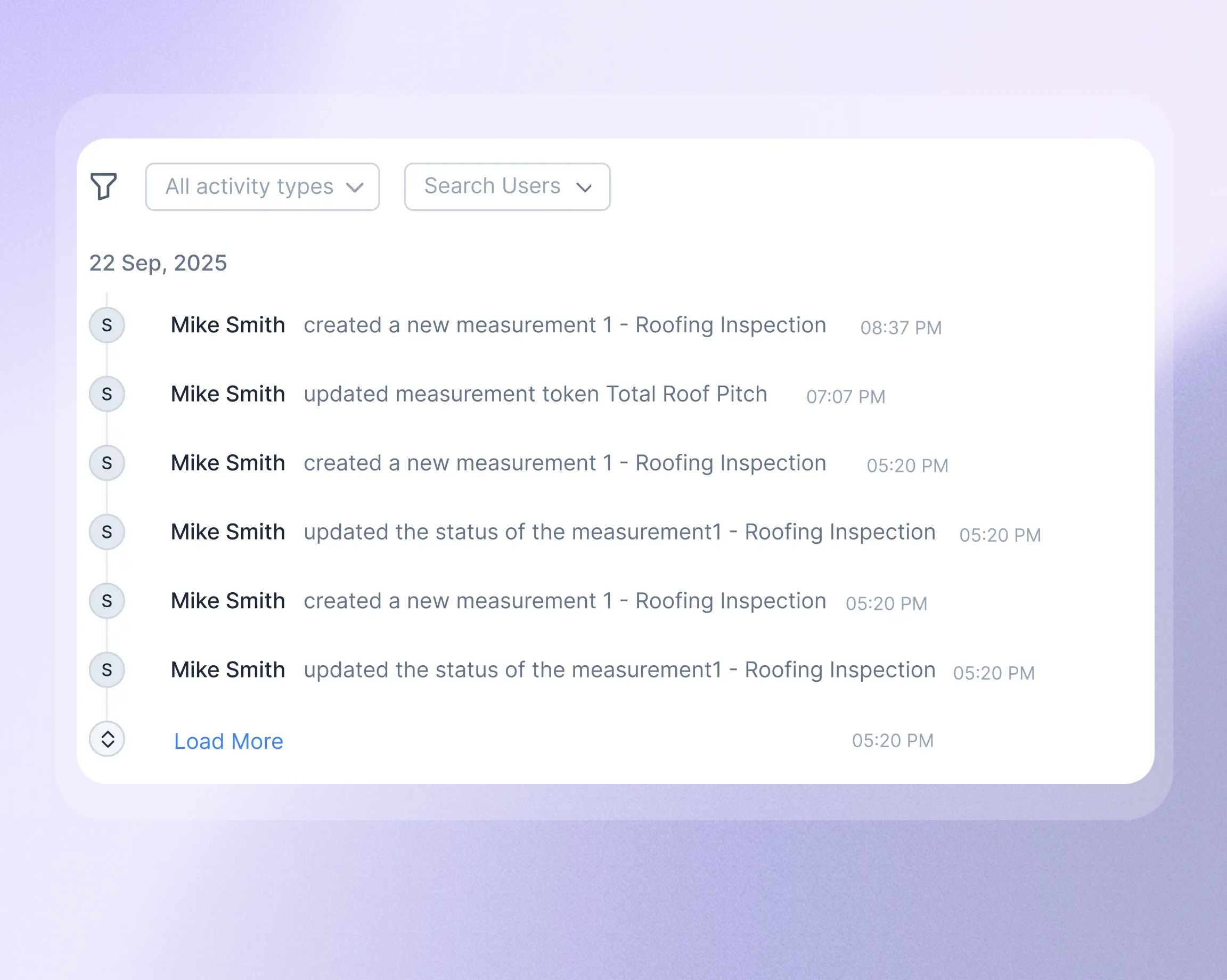
Every measurement order, sync, edit, and removal is logged in Zuper's job activity. If someone else picks up the job, they'll see exactly what happened and when.
Install EagleView from the Zuper App Store
Find EagleView under Measurements & Estimations, click Install, and authenticate with your EagleView admin account. Enter your Zuper API key in the config screen and you're connected.
Order or link a measurement from any job
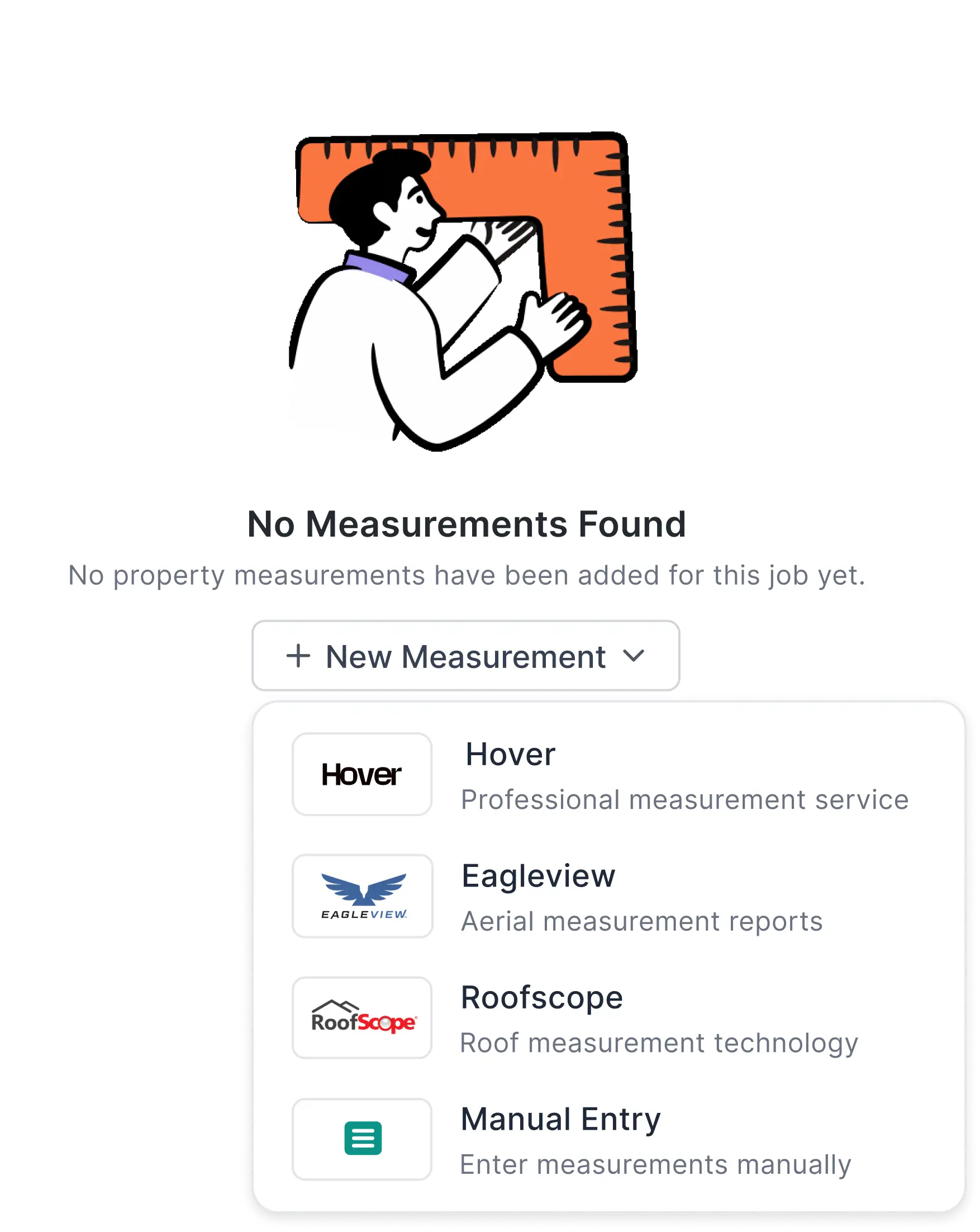
Open a job, go to the Measurements tab, and click New Measurement. Place a new EagleView order (choose property type, measurement type, deliverable, and measurement instructions) or search for an existing EagleView project by address. Running an insurance claim? Toggle on claim details and add your claim number, date of loss, and CAT ID right in the order form.
Measurements sync automatically
Once EagleView completes the report, all measurement values map to Zuper's standard tokens. No file uploads. No manual entry. The data shows up in the job, ready to use.
Build your estimate with real numbers
Review synced measurements, view report images in the Gallery, and pull the data directly into your proposals. Need to adjust a value after a site visit? Edit it in Zuper and the change is flagged and logged.
See it working on a real job
We'll walk you through the Zuper + EagleView integration on a live demo, using your actual workflow. Bring your questions. We'll show you exactly how aerial measurements flow from report to estimate.
